

In ClickUp, it is possible to start using the platform, at no additional cost, with the Free Forever plan. In the video below, we show some of the potential of this plan based on the use case of The Office as an example and we also bring its main functionalities highlighted in this article. The Free Forever plan includes one ClickUp Form. Forms are an excellent way to collect information in an organized way and store it on the platform.
ClickUp Forms
With the Free Forever plan, you can use one ClickUp Form. Forms are an excellent way to collect information in an organized way and store it on the platform.
In other versions of the tool, forms are unlimited and can contain conditional logic.
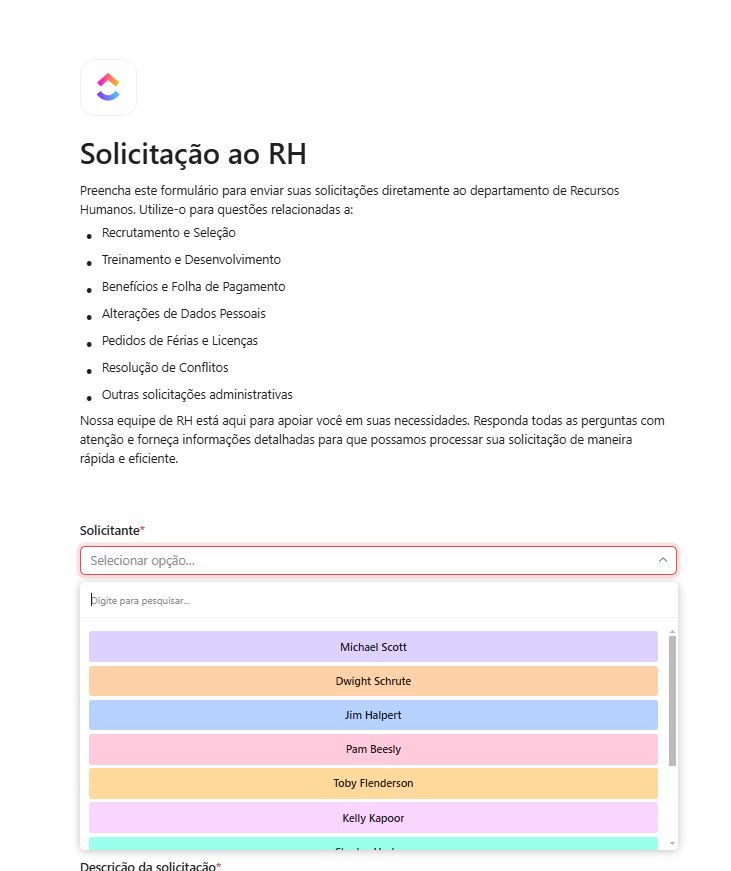
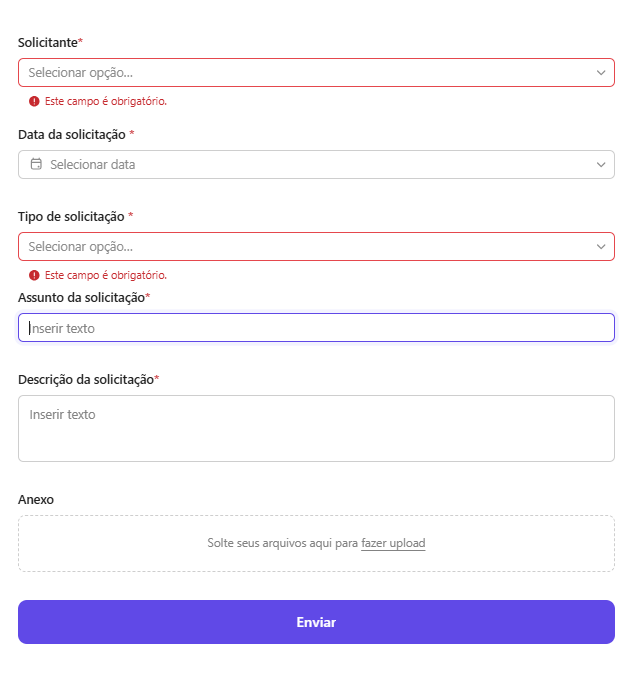
In forms, we can insert different fields, which can be marked as mandatory. Additionally, we can request the inclusion of attachments:
Management of OKRs (Goals)
In ClickUp, we can organize the company’s OKRs (Objectives and Key Results) using the Goals functionality.
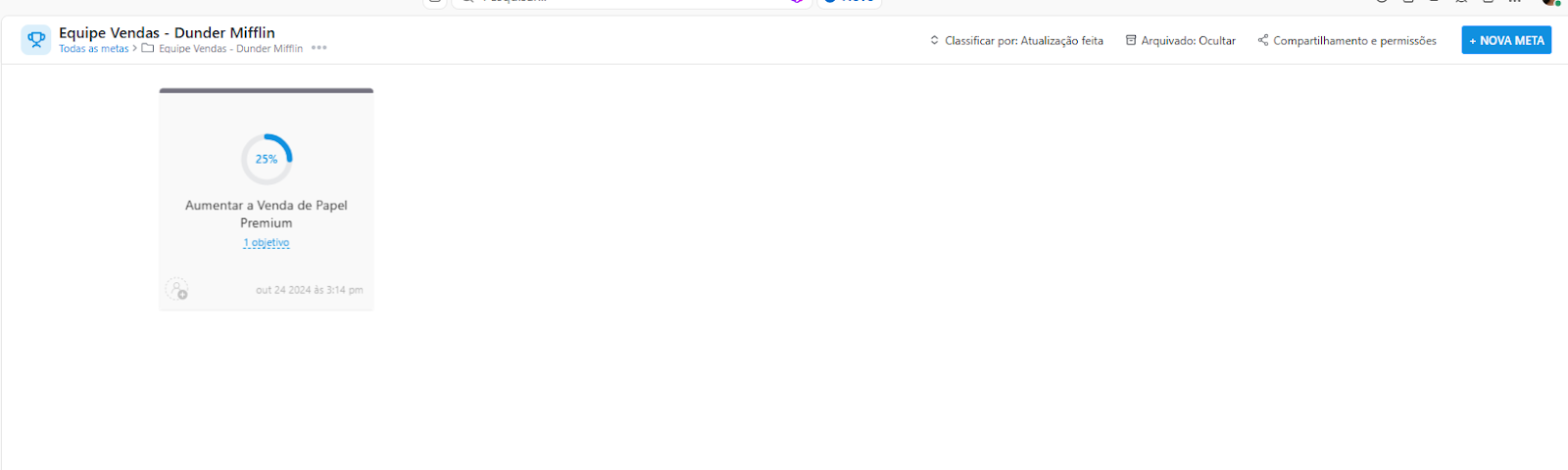
Goals can be organized into folders:

In folders, you can include goals and then segment the objectives that will lead to the desired result.
Each goal can be associated with different objectives and such objectives can have specific people responsible. In addition, we can associate objectives with ClickUp lists and tasks, in order to explain how daily work is contributing to the company’s goals.
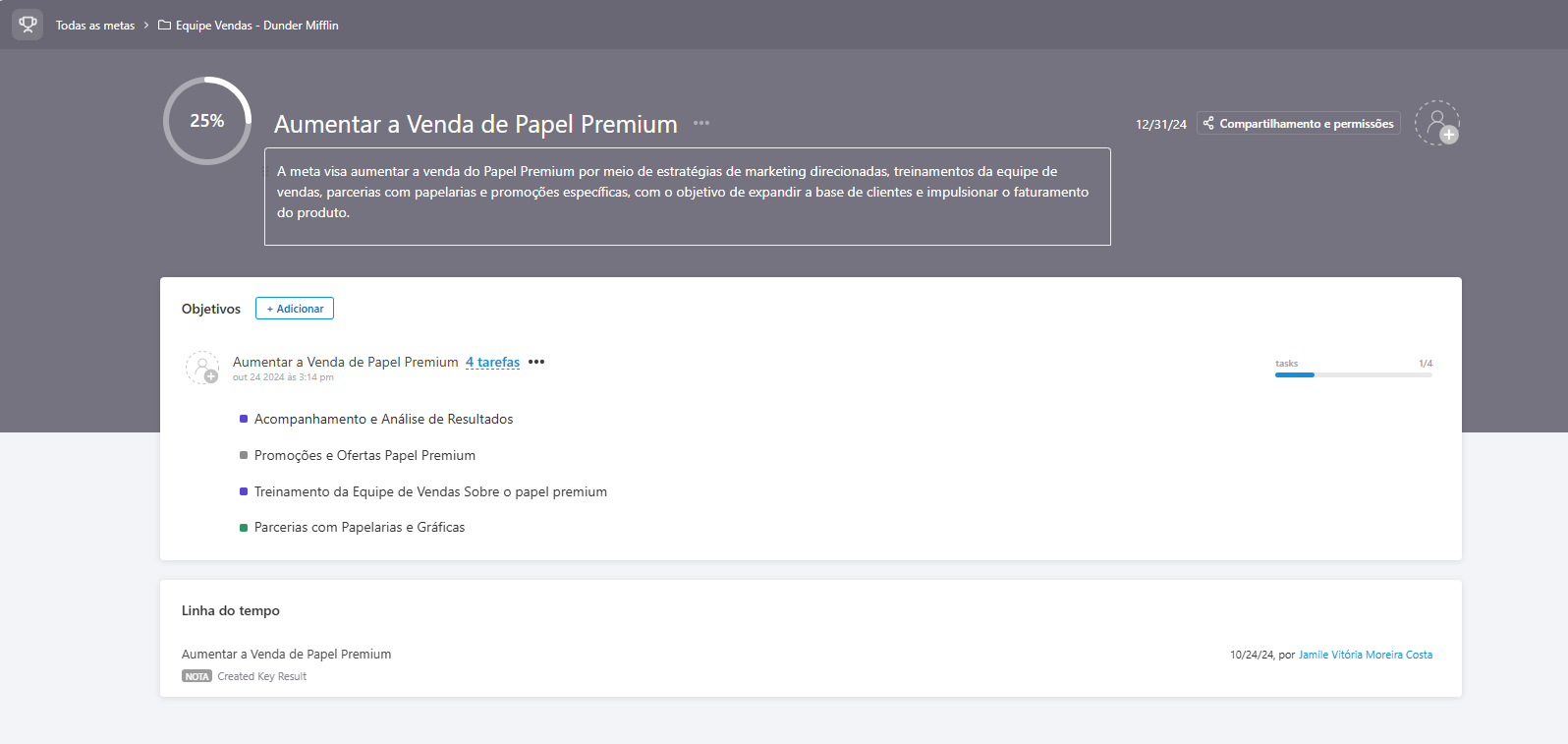
As tasks are completed, the achieved progression of the objective is updated.
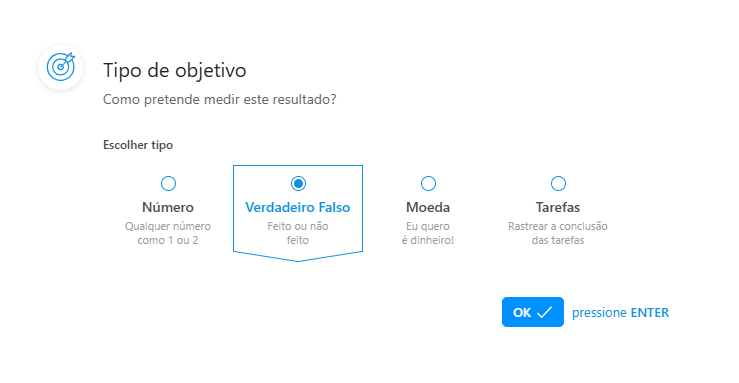
Finally, different criteria can be defined to measure the progression of objectives, for example, the criterion of “True” = Accomplished or “False” = Not Done, if you do not want to associate them with tasks.
Task Templates
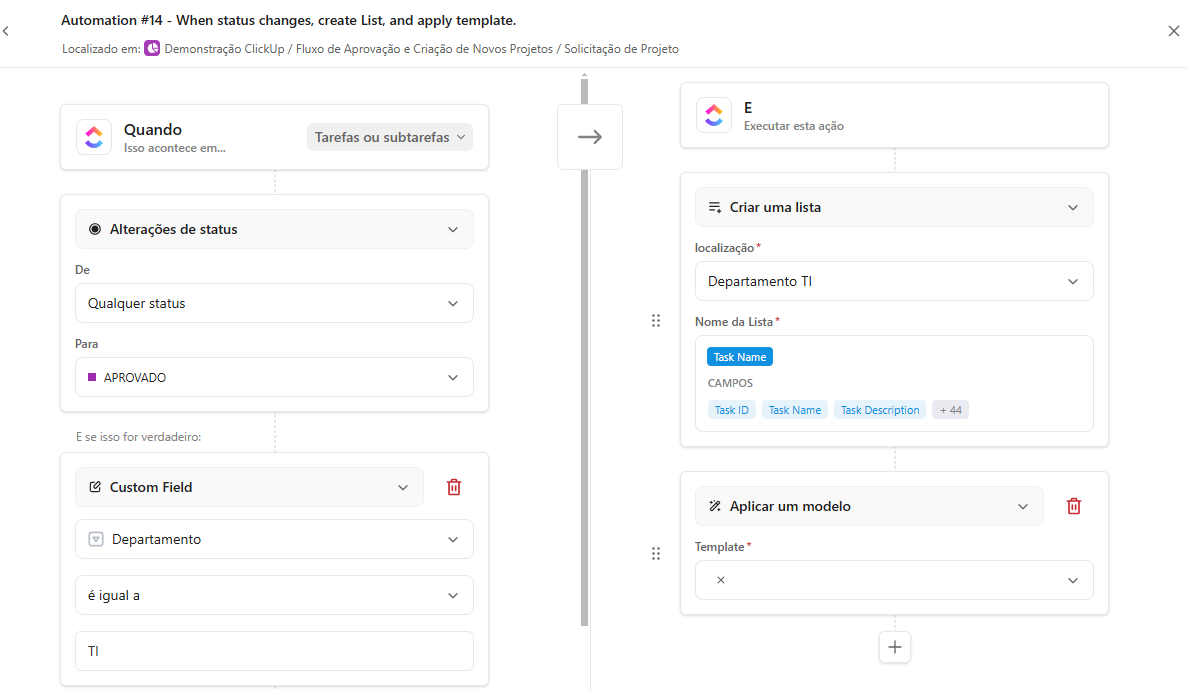
In ClickUp, we can work with templates, which can be applied to different levels: tasks, lists, folders, spaces… Imagine the scenario: your team has built a list with a schedule template of activities, which can be repeated at different projects. To avoid rework, we use the templates functionality to create your company’s template library.
In addition, templates can be replicated natively. To do this, simply define a trigger – for example, when a step is completed, the template for the next step is applied, in order to reduce the manual creation of subtasks and other items.
Automations
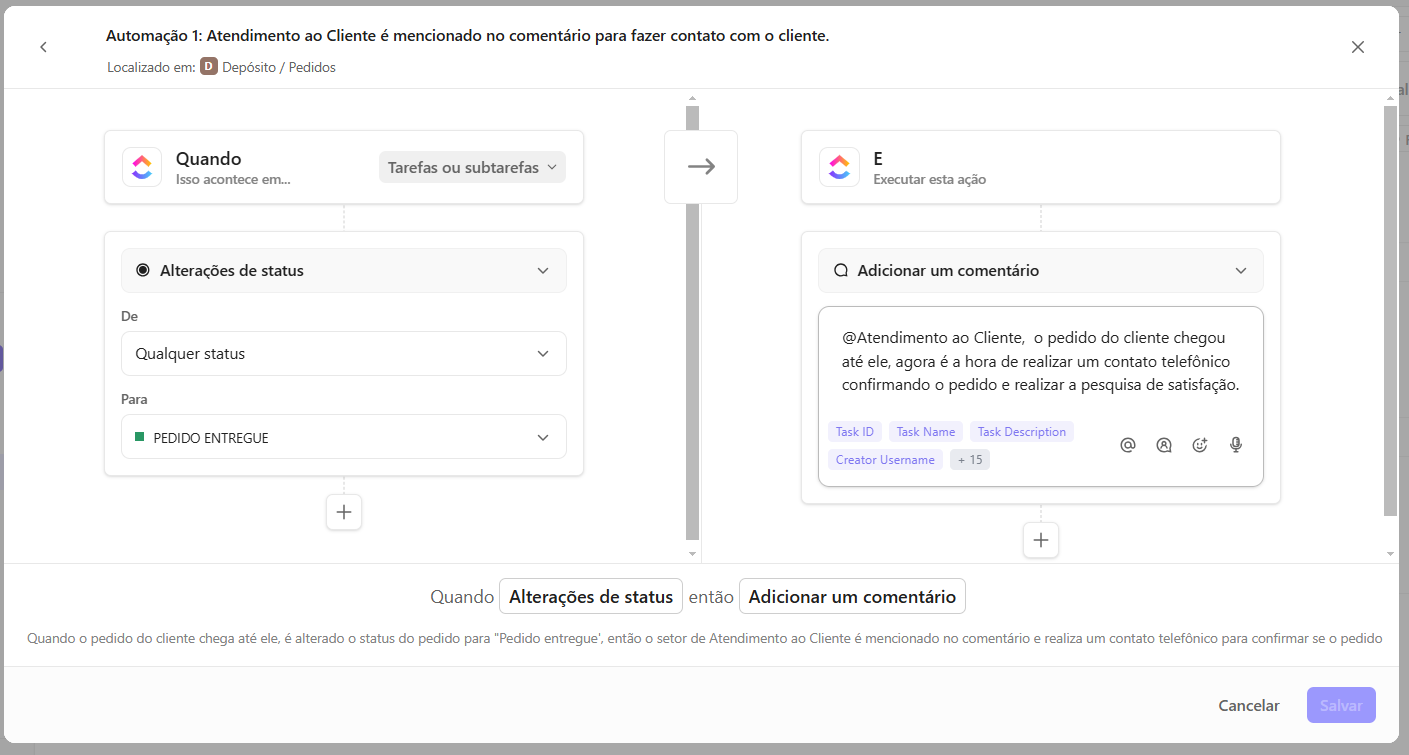
Automations in ClickUp help us make our workflow more fluid, agile and practical, eliminating repetitive and manual tasks. When configuring automations, no knowledge of programming logic is required, as they are completely No-Code.
With automations, it is possible to create triggers that automatically trigger actions, such as moving tasks between lists, updating statuses, sending notifications, assigning those responsible and much more. Furthermore, starting with the Business plan, ClickUp offers a wide variety of conditions and actions that allow you to customize automations according to the team’s needs, ensuring greater efficiency and productivity.
Gantt view
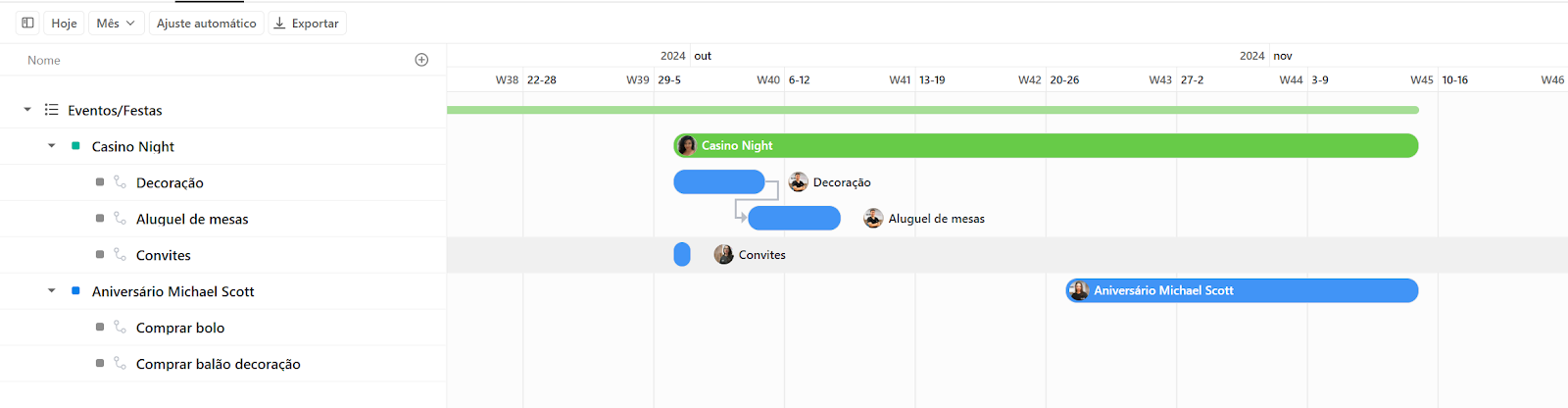
The Gantt view in ClickUp helps us visualize the project schedule in an intuitive and dynamic way. With it, we can identify the critical path, define and manage dependencies between tasks more easily, adjust deadlines in an agile way, in addition to applying filters to visualize specific project information.
This view also allows us to monitor the progress of tasks in real time, predict possible delays and ensure better date allocation.
Kanban View
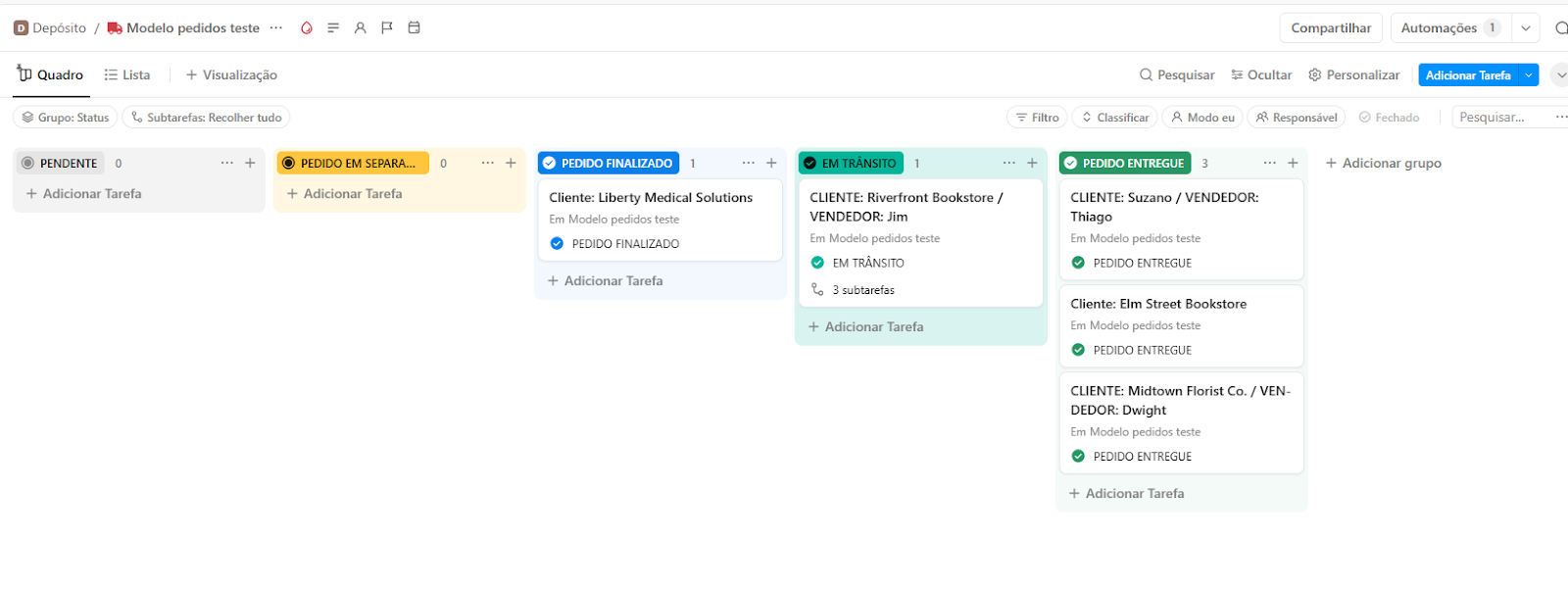
With the Kanban view, called “Boards” in ClickUp, it is possible to organize and visualize tasks in an intuitive way, distributed in lanes that can be configured according to those responsible, status, custom fields, priorities and other criteria.
This view allows you to drag and drop tasks between lanes, making it easier to assign specific fields. In addition, Boards also offer advanced filters, allowing full customization of your visualization.
Want to see how this workflow scales with other ClickUp plans? Contact us.
Explore more
Everything TaskUP does with ClickUp, in English.