

Hello everyone! Today we’ll talk a little about how the Pomodoro method can help you be more productive and complete your tasks in a faster, more focused, and consistent way and how ClickUp can speed up this method even further. Well, the pomodoro method is nothing more than measuring the time for a certain task you are currently performing, what sets it apart is the way you do it with the pomodoro.
This method is time management based on 25-minute periods (pomodoros) of focused study or work with 5 minutes of rest for each pomodoro performed, but you can customize it your way. Furthermore, after 4 blocks you will take a longer rest break, which can range from 15 to 30 minutes.
Pomodoro Method: How can ClickUp accelerate this focus?
ClickUp includes native time tracking that supports this time-management method, thus saving you time by not having to leave the screen to run a pomodoro app on another screen, since within the task you need to complete you can start the timer within the task itself and as a bonus the time you spent focused on it will be recorded.
I’ll teach you how to do this:
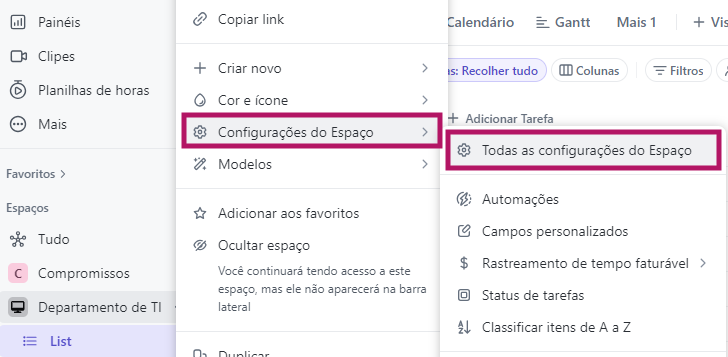
First step: Check if the Tracking ClickApp is activated in your ClickUp, click on the three dots next to your space, then on Space Settings and All Space Settings. Check if Time Tracking is active, if not, enable it
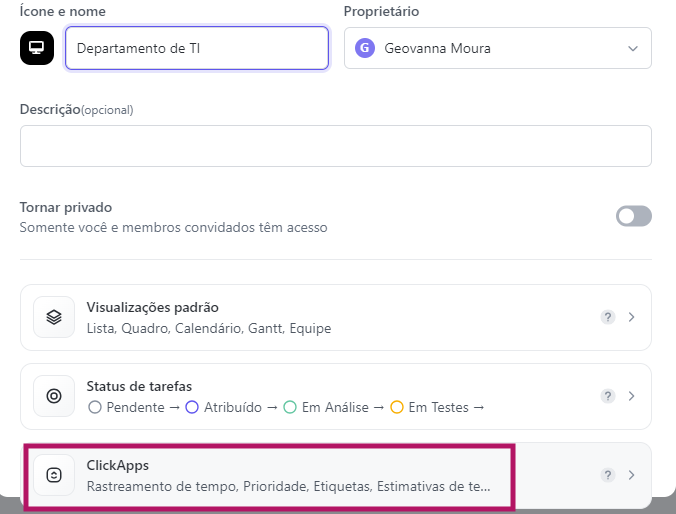
Second step: Click on the option ClickApps
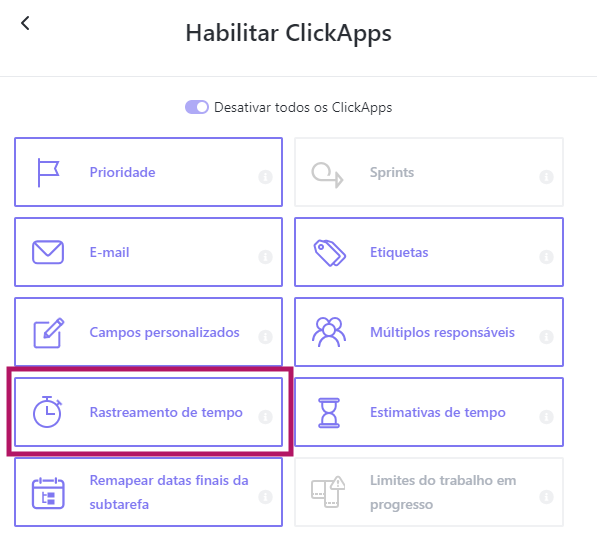
Third step: Check if Time Tracking is active, if not, enable it
Fourth step: Then create a task in your ClickUp and click on Time Tracked, so you can control your focused time;
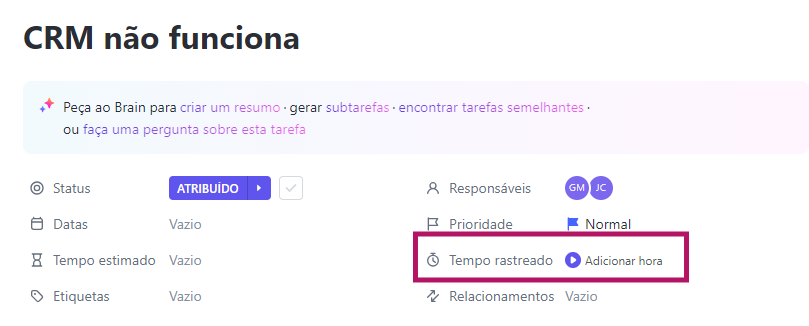
Add the time you want to do your work block:
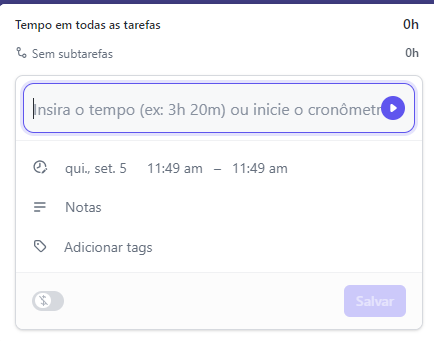
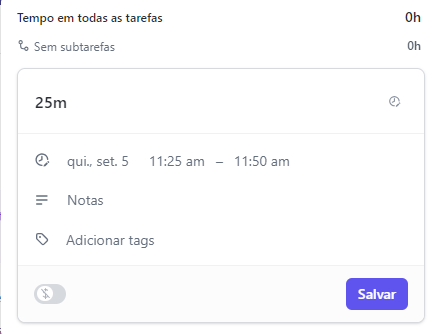
Save and then to start the time just click on the button next to the time:



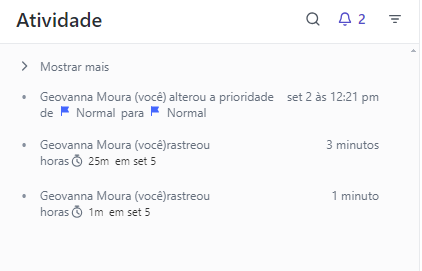
Fifth step: You can track your breaks and tracked time in the Activity that is within your own task on the right:
That’s it! I hope you liked the tip for saving time and being able to know how many hours or minutes you are taking for each task and being able to make the most of it by saving time, with more productivity and with more focus!
Explore more
Everything TaskUP does with ClickUp, in English.