

Transferring data from Notion to ClickUp can bring several advantages, especially if your team or you are looking for a more robust solution for project and task management. Below are some of the main advantages of this process:
Advantages of Transferring Data from Notion to ClickUp
- Resource Centralization:
- ClickUp offers a set of integrated tools, enabling teams to manage tasks, documents, communications and reports in one place. This can eliminate the need for multiple tools and simplify your workflow.
- Advanced Project Management Features:
- ClickUp has advanced project management features, such as task dependencies, automations, and Gantt charts, that may not be available in Notion.
- Customization and Flexibility:
- ClickUp allows for greater customization with custom views, custom fields, and automation options that can be tailored to the specific needs of the team or project.
- Scalability:
- If you are planning to expand your team or project, ClickUp is designed to scale with your needs, offering more features and support for larger teams.
- Enhanced Collaboration:
- ClickUp offers real-time collaboration tools, including task comments, team mentions, and integrated chat, improving communication between team members.
- Integration with Other Tools:
- ClickUp has integrations with a wide range of tools and services, including Slack, Google Drive, and Zapier, allowing for seamless integration into the ecosystem of existing tools.
- Detailed Reports and Analysis:
- ClickUp offers advanced reporting features that help you monitor project progress, identify bottlenecks and optimize processes.
- Ease of Use and Intuitive Interface:
- ClickUp’s interface is designed to be intuitive and easy to use, facilitating team adoption and reducing training time necessary.
Step by step to transfer data from Notion to ClickUp:
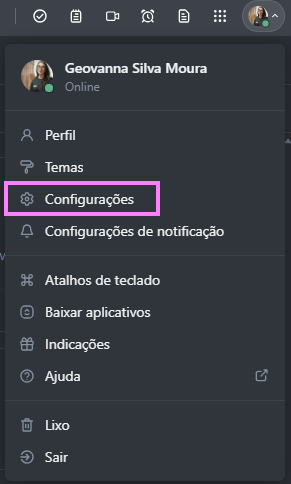
Step 1: In your profile, click on settings
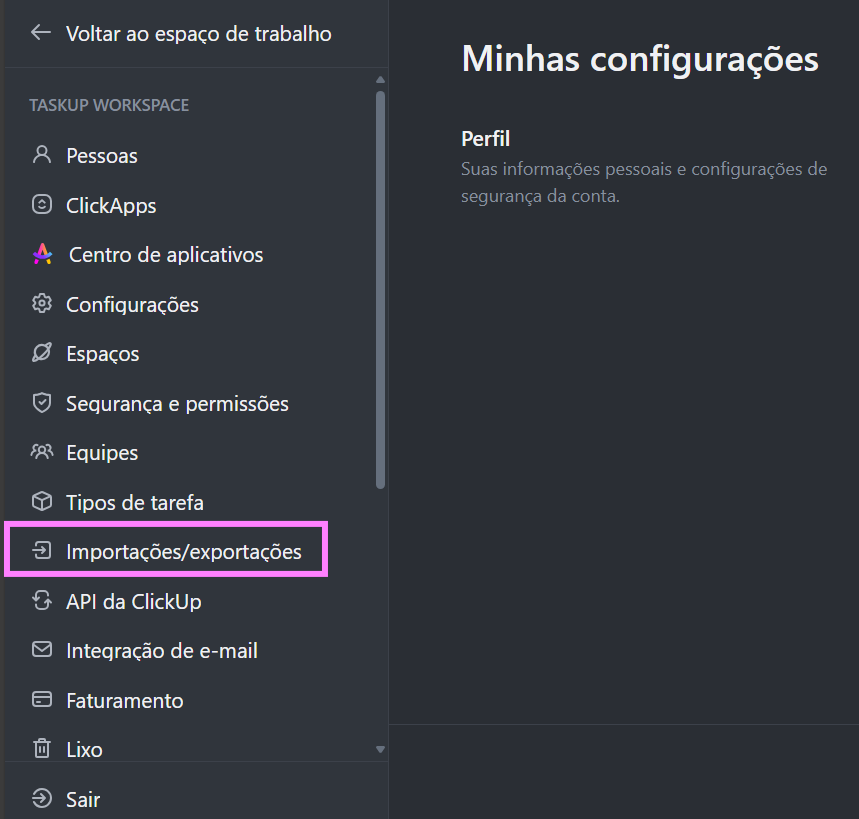
Step 2: In the tab on the left of your profile, click on “imports/exports”
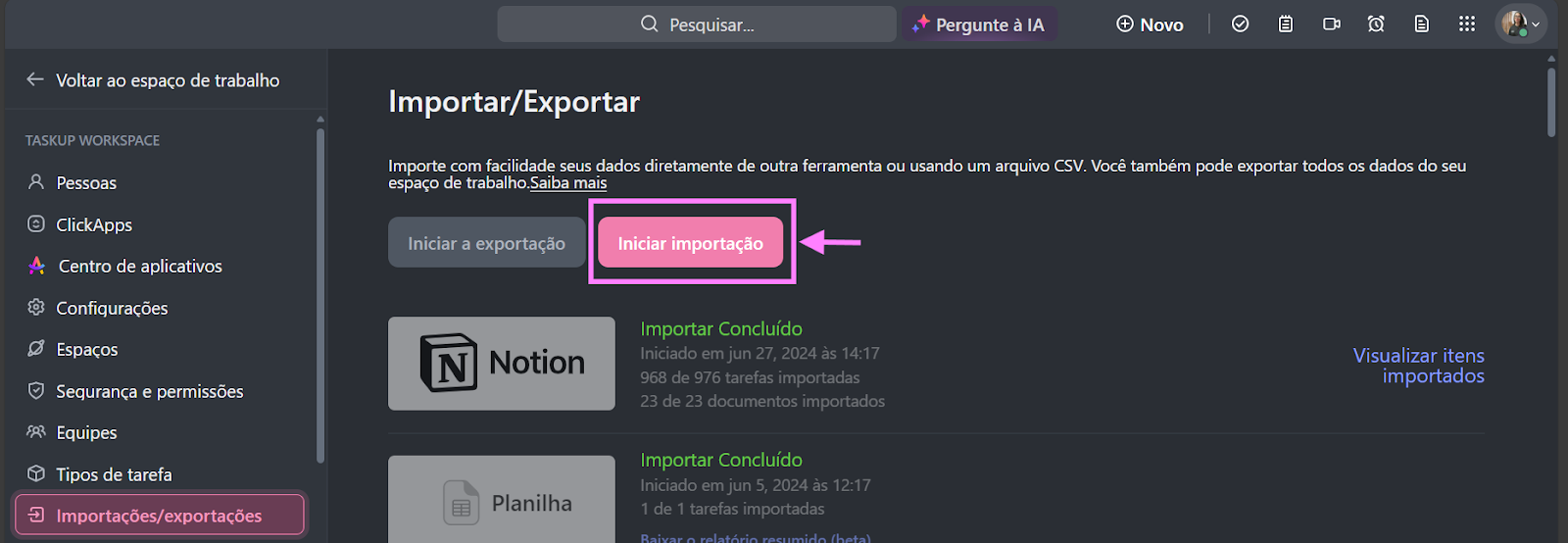
Step 3: Click on “start import”
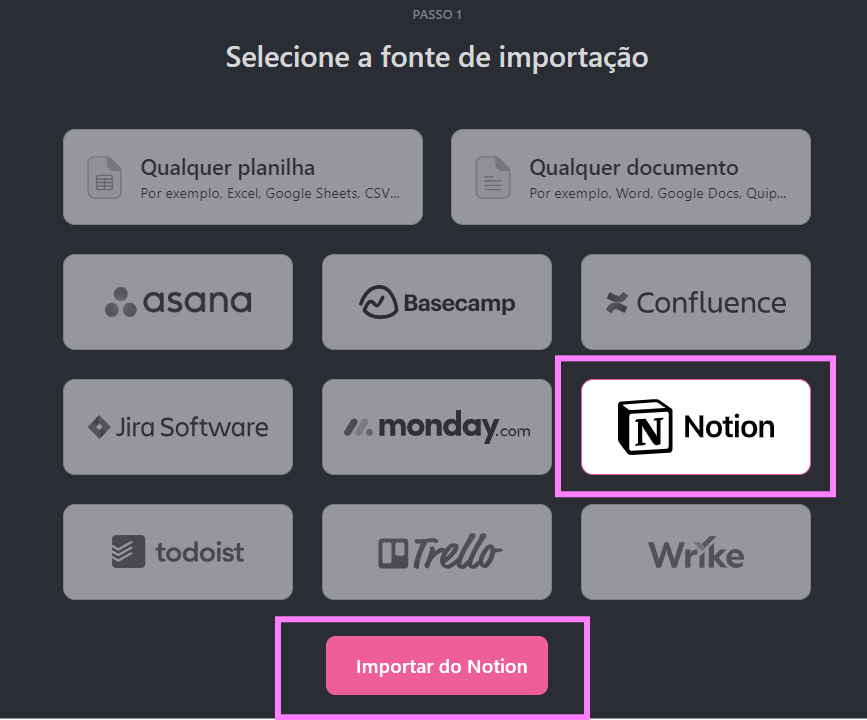
Step 4: Select your import option
In our case it will be “Notion” and then “Import from Notion”
Step 5: This screen will open and just follow its step by step, which I show below:
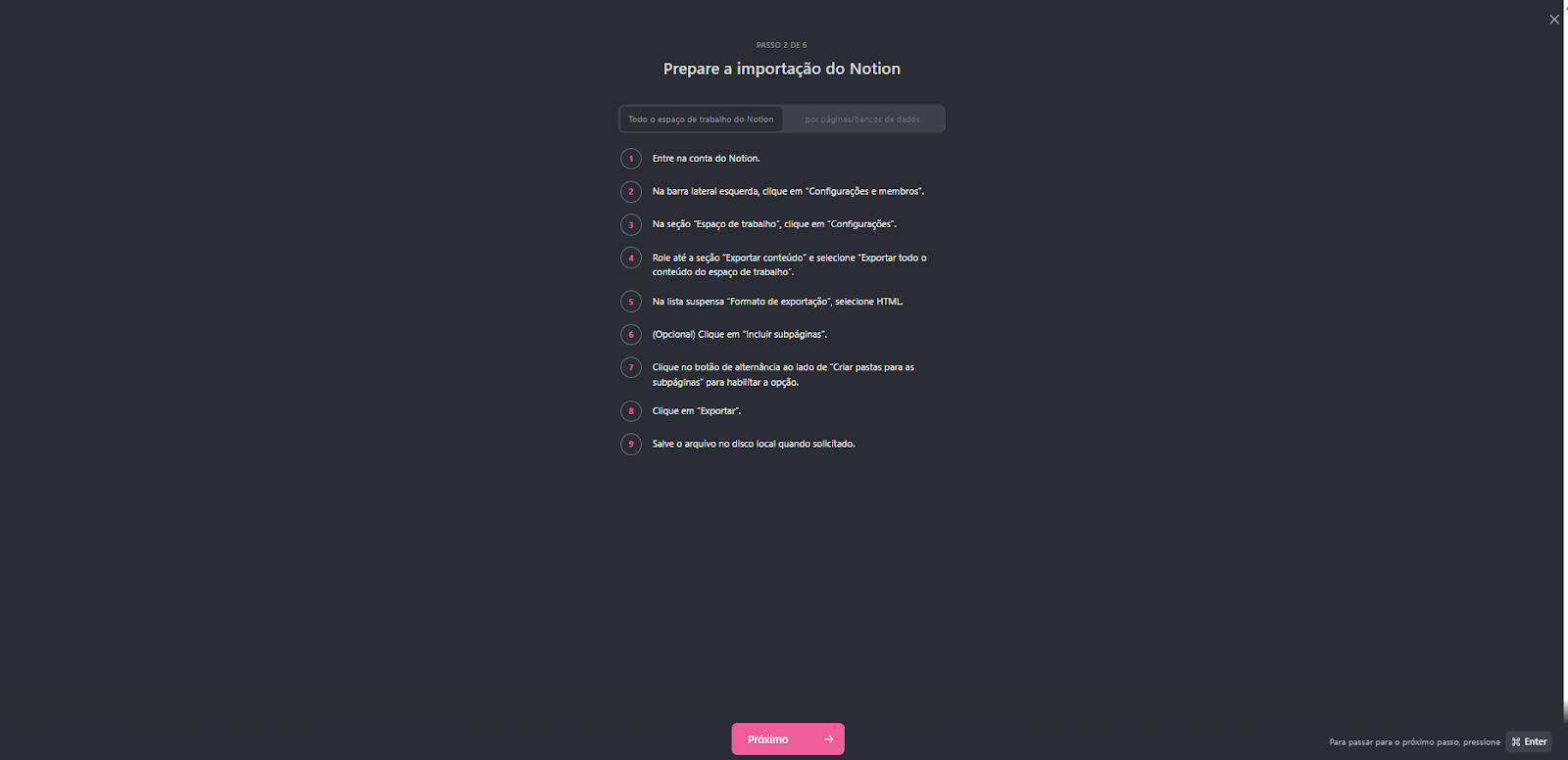
Now the process will be within Notion
- Log into your Notion account
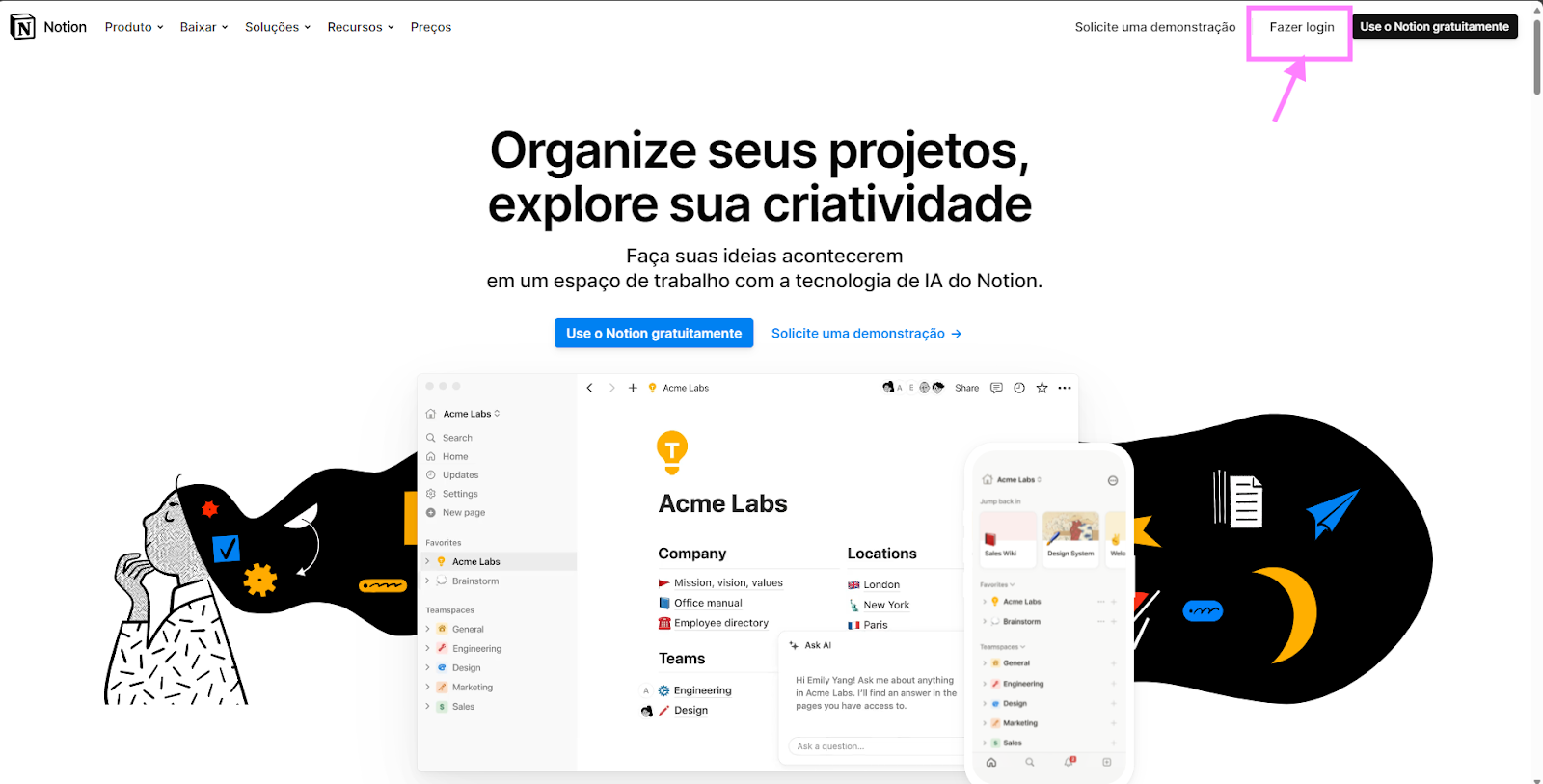
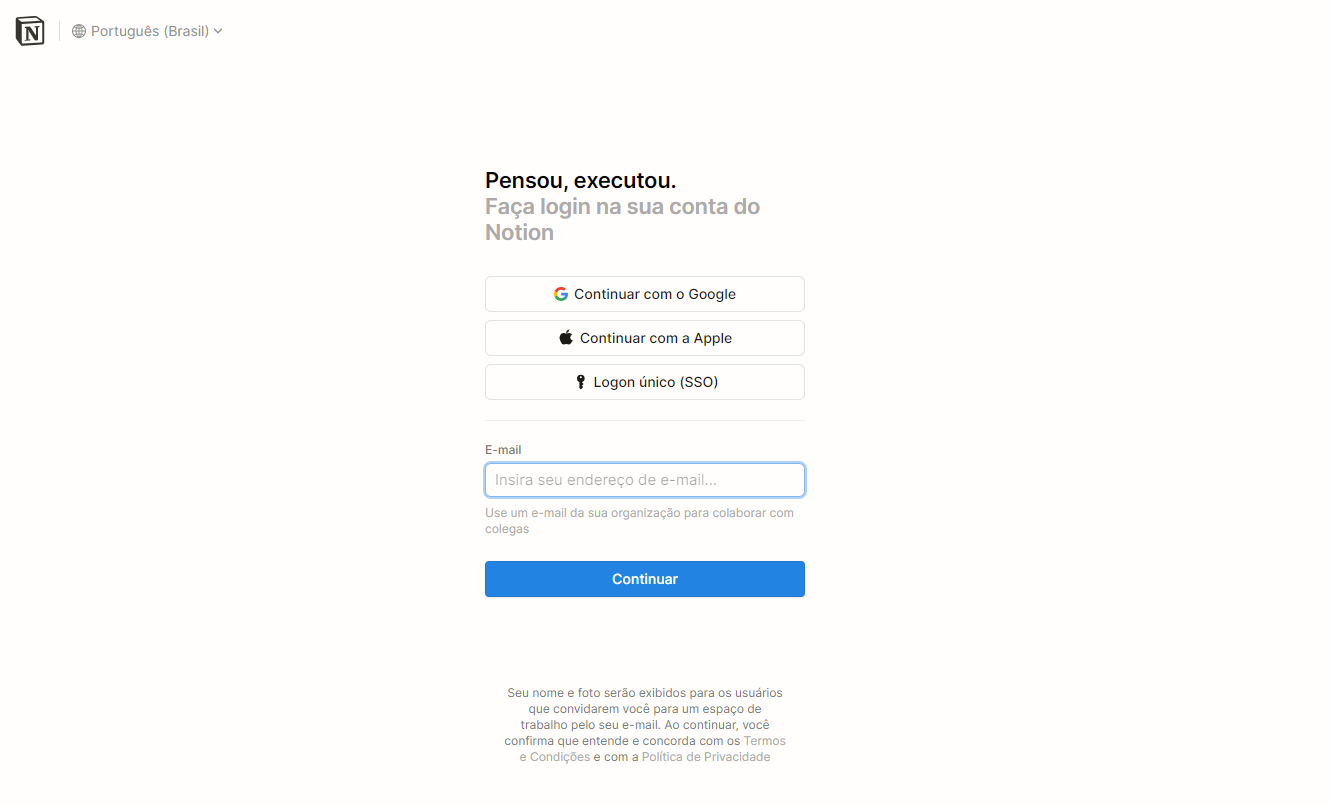
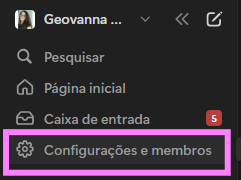
- Now logged into your Notion, go to the left sidebar and click on “settings and members”
- In the “Workspace” section, click “Settings.”
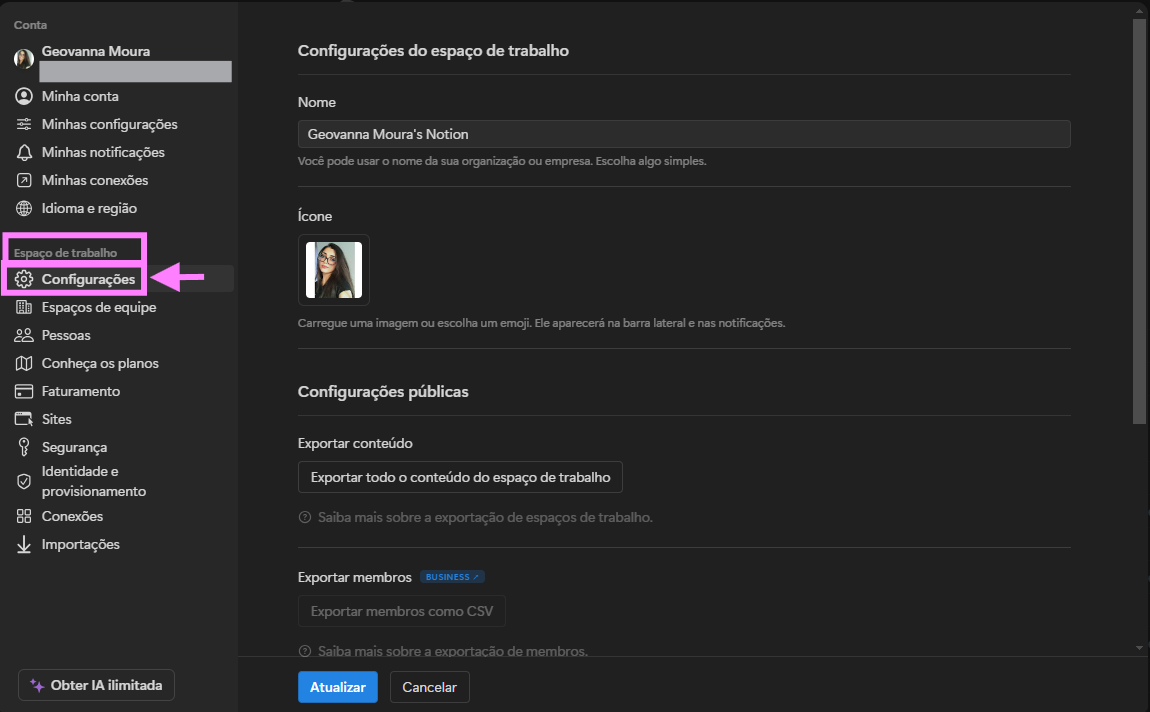
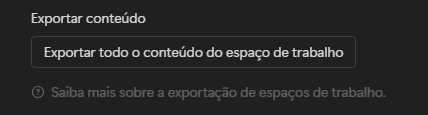
- Scroll to the “Export Content” section and select “Export All Workspace Content.”
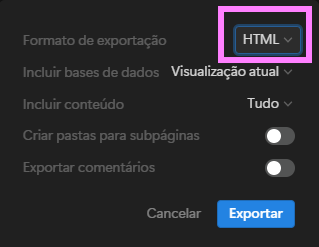
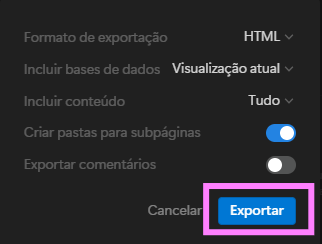
- In the “Export Format” drop-down list, select HTML. toggle next to “Create folders for subpages” to enable the option.
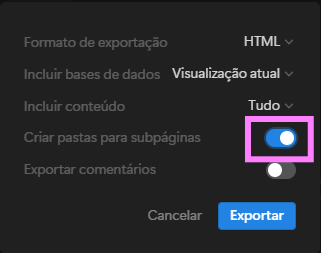
- (Optional) Click “Include subpages”: Click the toggle next to “Create folders for subpages” to enable the option.
- Click “Export”.
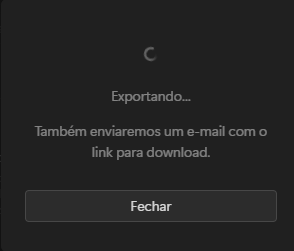
Note: The download takes a while depending on the size of your Notion
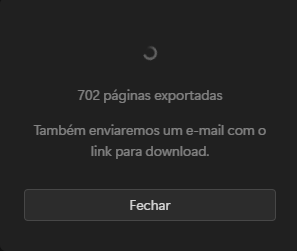
Back to ClickUp:
Step 6: After the download is complete, click “Next” in ClickUp
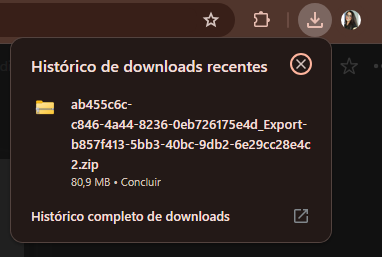
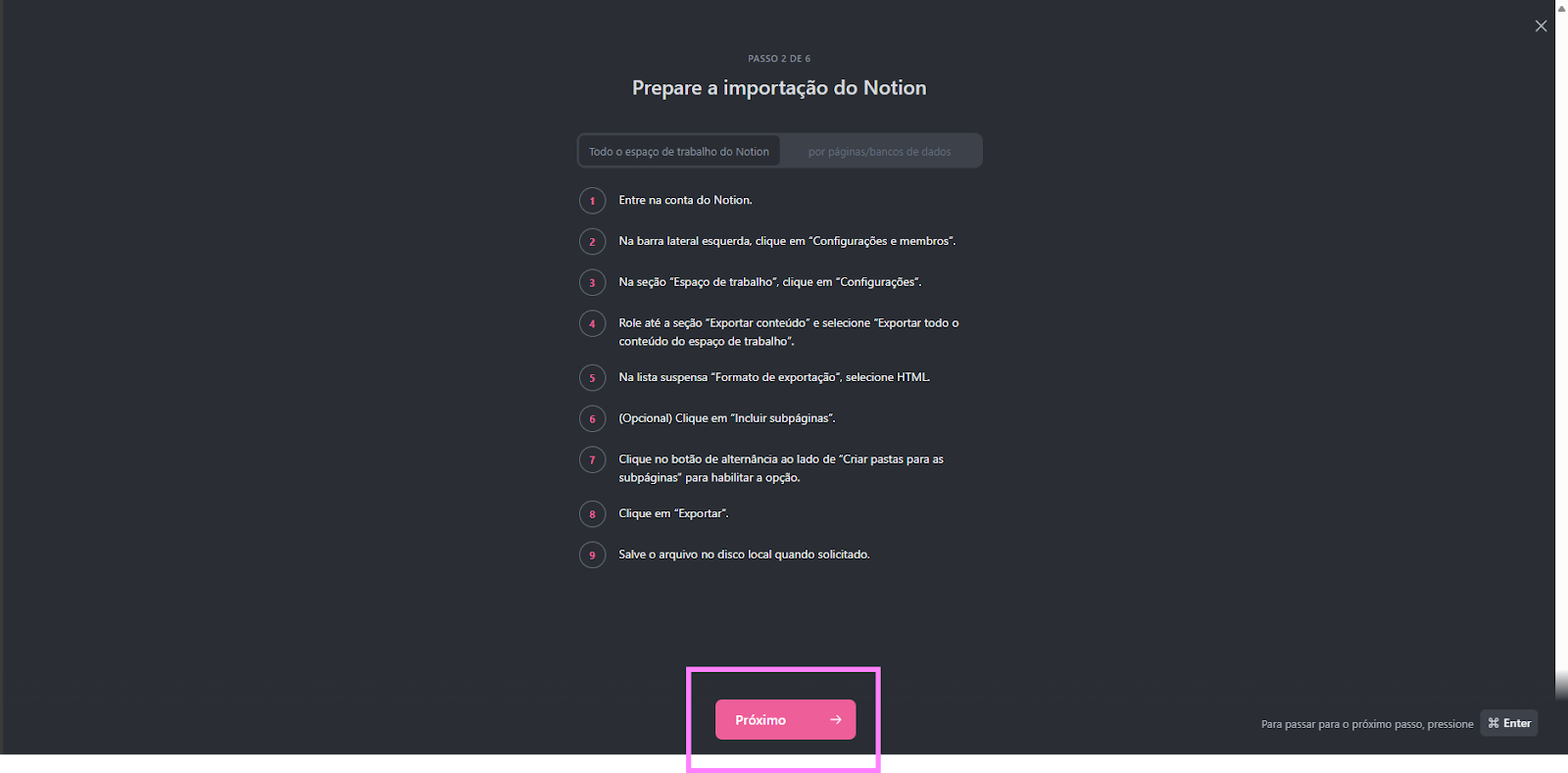
Step 7: Click “Search in your browser” or drag the download
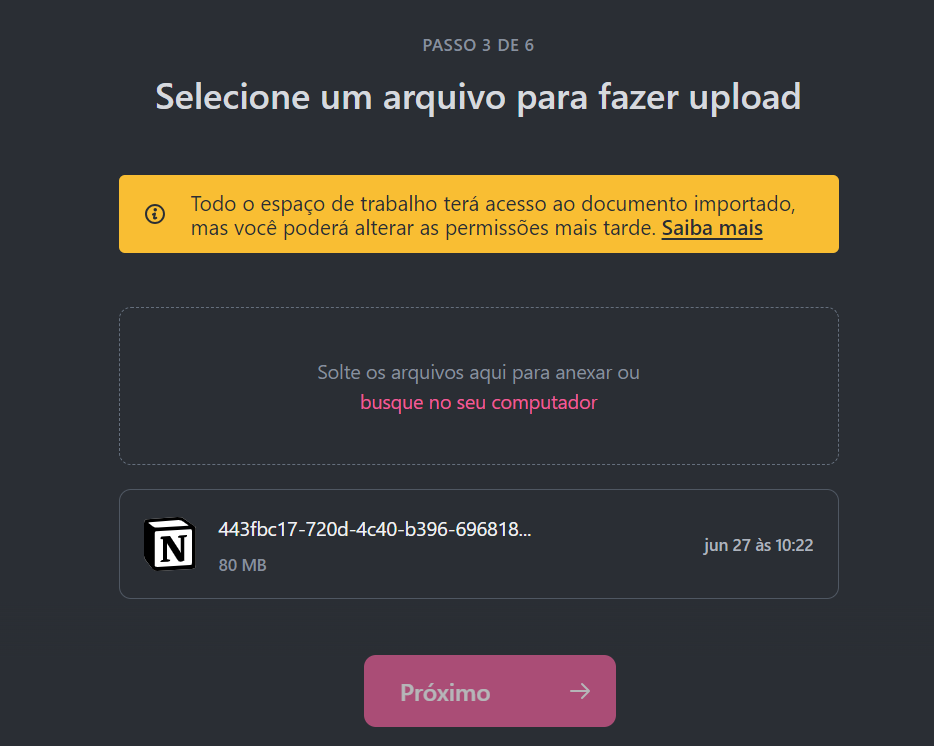
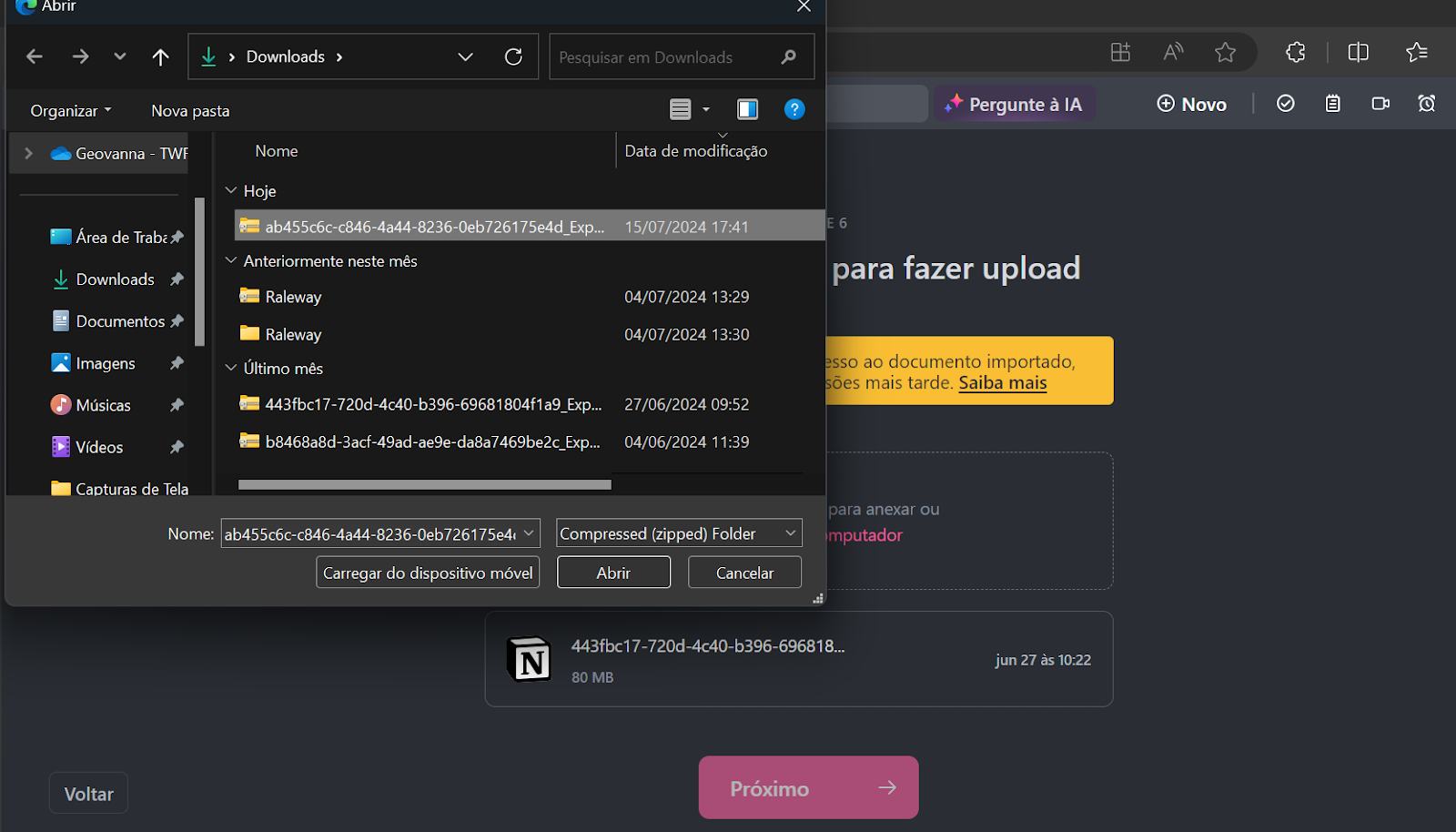
Step 8: Wait for your document to download into ClickUp
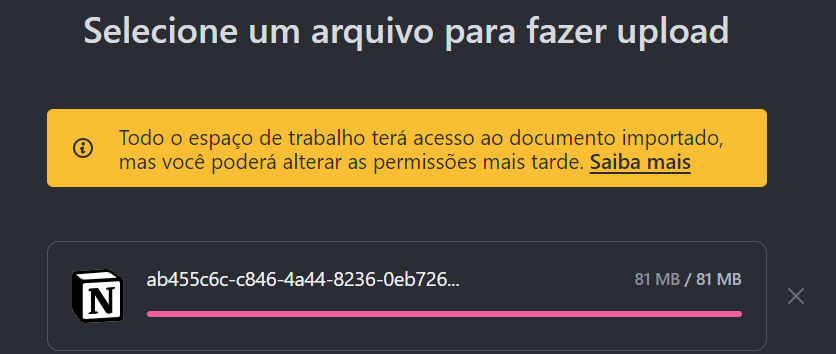
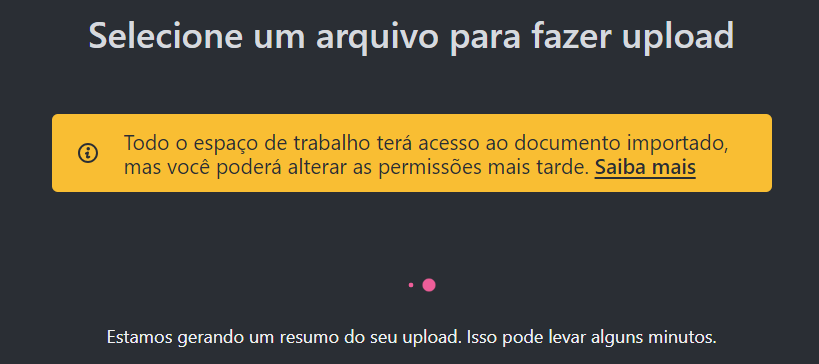
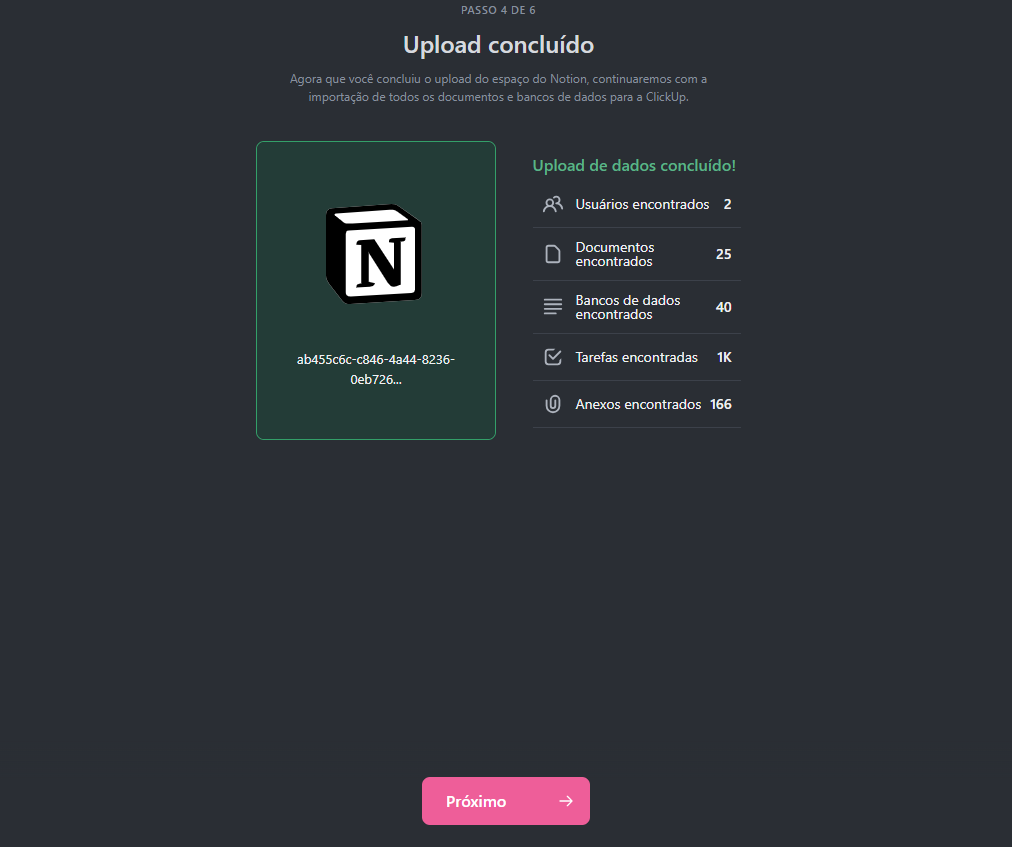
Step 9: After loading, click “Next”
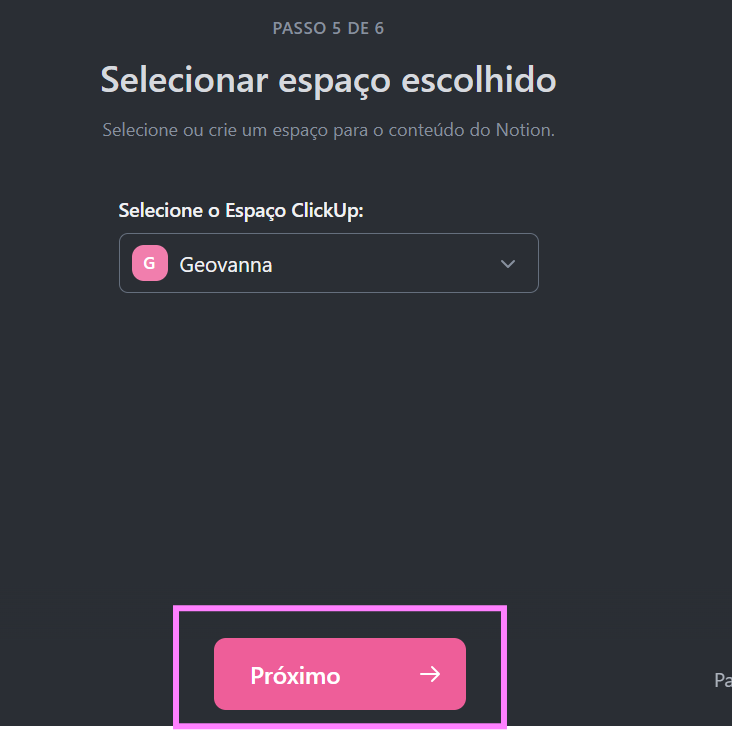
Step 10: Select where you want to leave your import within your ClickUp,
you can create a new space or place it within an existing space
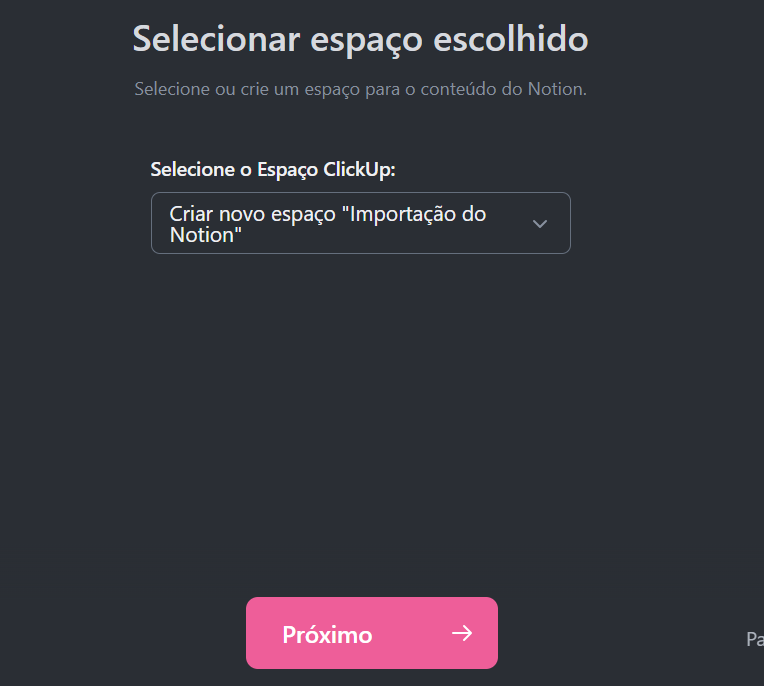
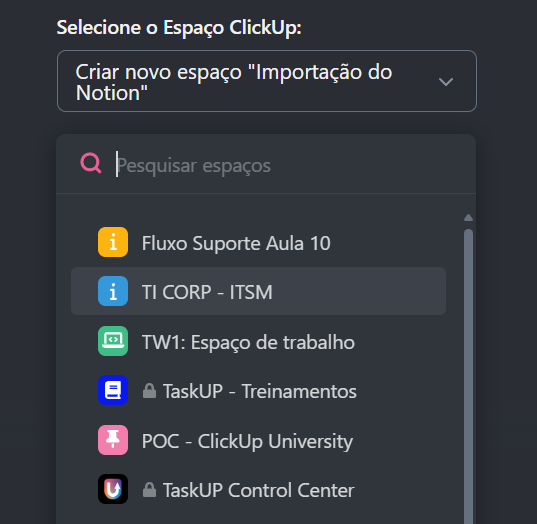
Step 11: After choosing the space in which you will leave your import, click “Next”
Step 12: You can import your Notion users into ClickUp, if they have a ClickUp account
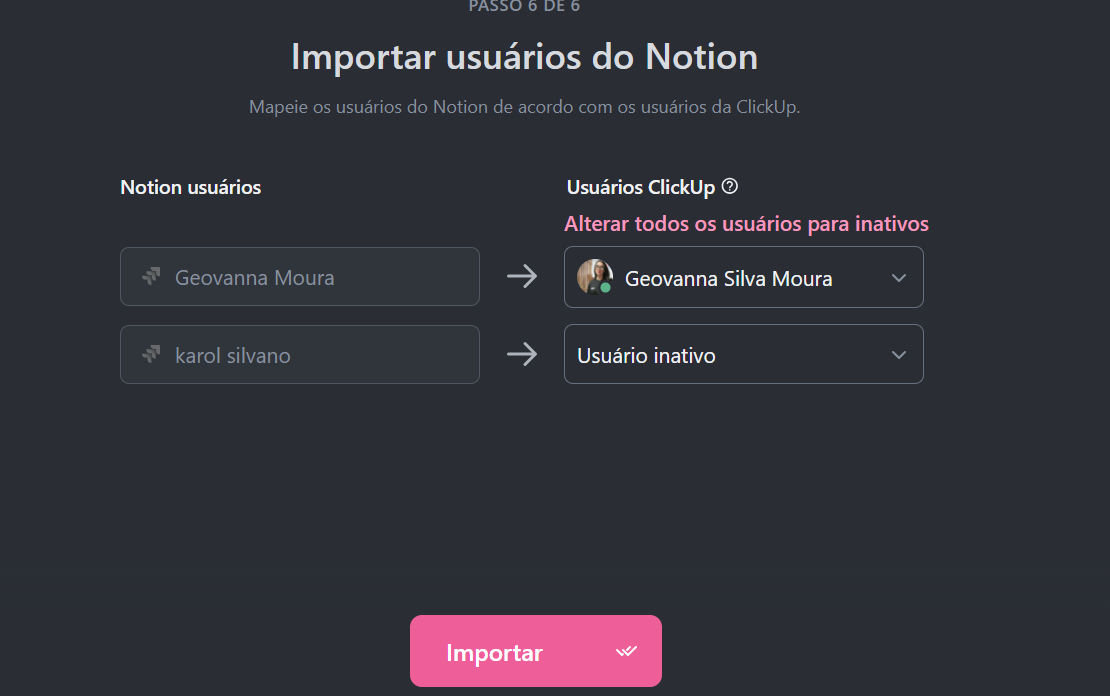
Once you have finished making user choices, just click “Import”
Step 13: The transfer to ClickUp will begin
when finished you will be able to access all your data that was within notion in the space you chose in ClickUp
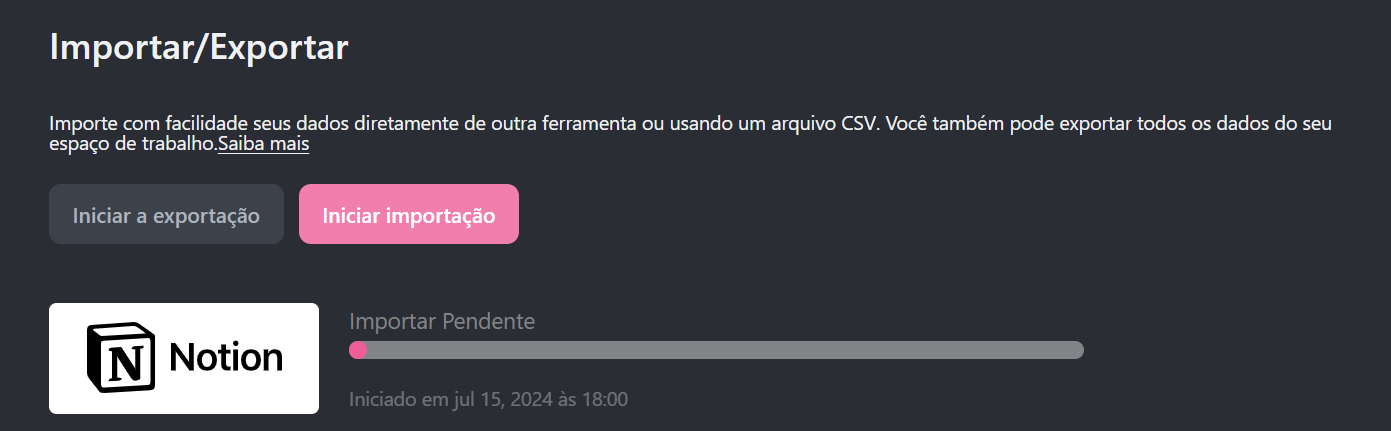
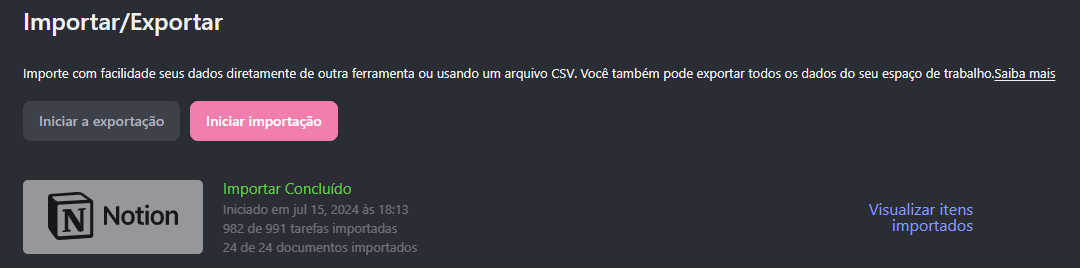
Step 14: Finalizing and Organizing
Now you and your team can organize the information in the best ClickUp way, being able to create more folders and place the automatically created lists inside it and so on or using it in Docs format (Notion’s main feature).
Here is an example of how Here’s my import and how I organized it for my clickUp, remembering that everyone has their own way of organizing!
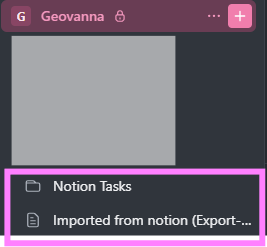
The import created these two views, the first a “Notion Tasks” folder with the lists inside and the second in Docs format (Notion’s main one) as “Imported from notion”:
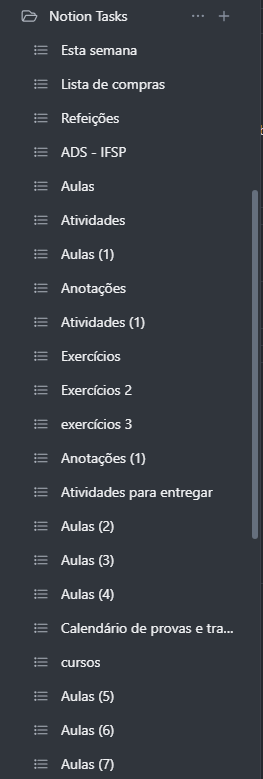
Clicking on “Notion Tasks” the import left all my Notion items in this folder in list format:
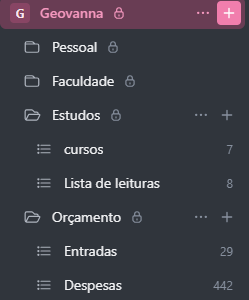
So I reorganized them into folders and lists and it looked like this:
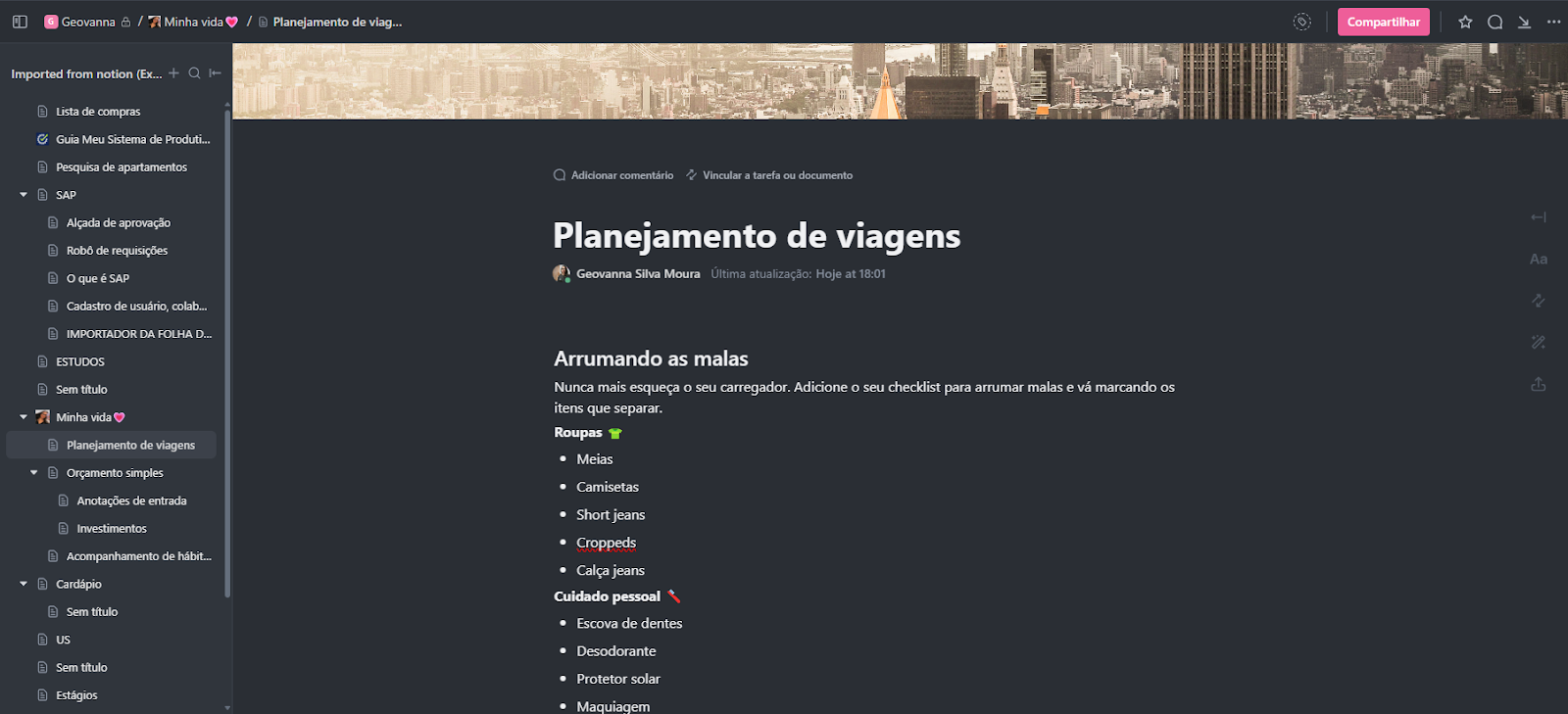
And the view in Docs of the import looks like this:

Just reorganize it the way you want and what’s best for you!
Explore more
Everything TaskUP does with ClickUp, in English.