
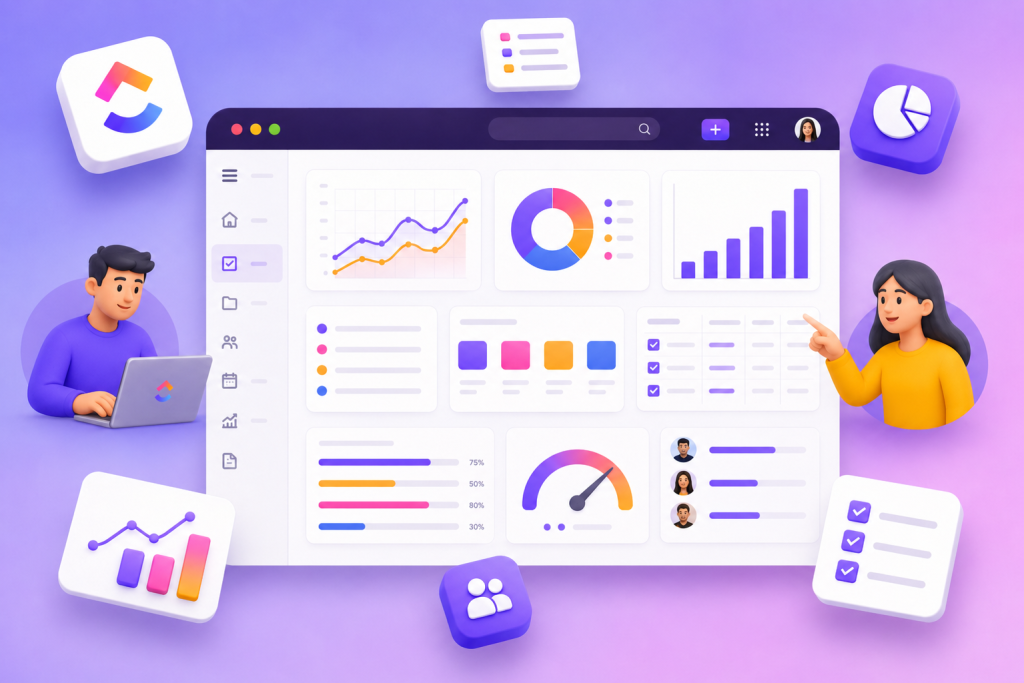
ClickUp Dashboard Examples help teams transform project data into real-time, actionable visualizations. These dashboards centralize ClickUp tasks, goals, time records, sprints, and custom fields into widgets that directly answer business questions — for example, “what initiatives need attention?” or “who is overworked?”.
When work seems fragmented — as the Work Trends Index cited in the reference material points out, in which 48% of employees report a feeling of chaos — dashboards reduce noise by aggregating relevant information into a single view. The idea is that each dashboard responds to a clear decision, with widgets automatically updating as work progresses.
Why Use ClickUp Dashboards
ClickUp dashboards act as customizable reporting pages that stay connected to your work. Instead of static reports, widgets display dynamic data and allow you to drag, resize, and organize blocks as your team needs. Four reporting needs justify their use: customization, real-time updates, controlled sharing, and the ability to aggregate data across spaces.
Additionally, dashboards help you monitor status, workload, sales pipeline, campaign performance, billable time, hiring progress, sprint velocity, and individual productivity — all from the same space where execution happens.
Examples of ClickUp Dashboards
Below, a summary table with 10 examples of panels cited in the source, the ideal audience, the main recommended widgets and the decision that each panel supports. Use it as a reference when designing dashboards that answer concrete business questions.
| Dashboard example | Ideal for | Key widgets | Decisions it supports |
|---|---|---|---|
| Executive Dashboard | Leadership Teams | Portfolio, Pie Chart, Workload, AI Cards | What initiatives need attention? |
| Project Management Dashboard | Project Managers | Task List, Status Bar Chart, Timeline, Calculation | What’s behind schedule, stuck, or at risk? |
| Sales Dashboard | Sales Managers | Pipeline Stage, Revenue Cards, Trend Charts | Which deals need tracking? |
| Marketing Dashboard | Marketing Teams | Bar Chart, Task List, Embedded Widget | Which campaigns are behind or underperforming? |
| Time Tracking Dashboard | Agencies and Service Teams | Time Tracking, Billable Reporting, Calculation | Which clients or projects are over budget? |
| Team Workload Dashboard | Team Leaders | Workload, Task Count by Assignee | Who is Overworked or Underutilized? |
| Customer-Facing Dashboard | Agencies and Teams Delivering to Customers | Filtered Task List, Status Chart, Embedding | What can customers see without internal interference? |
| HR Dashboard | People Operations Teams | Hiring Funnel, Forms, Calculations | Where is the hiring or onboarding process blocked? |
| Product Dashboard | Product and Engineering Teams | Sprint Burndown, Bug Severity, Velocity | Is the release still on schedule? |
| Personal Productivity Dashboard | Individual Contributors | Dynamic Task List, Time Bar Chart, AI-Powered Priority Insights | What should I work on next? |
How to choose and design your dashboard: principles and practices
When designing ClickUp dashboards, prioritizing clarity and action is essential. Instead of replicating every possible metric, each dashboard should answer a business question. Combine widgets to transform raw data into clear operational signals.
- Start with the most urgent decision: choose the dashboard that solves the immediate problem (missed deadlines, lack of pipeline visibility, project margin, etc.).
- Design for a clear question: one dashboard per business question prevents overload and facilitates decision making.
- Prioritize widgets that show status rather than just lists — for example, status, timeline, or burndown charts.
- Use workloads and capacity limits to automatically identify overload and underutilization.
- Leverage automations and AI cards to turn changes into actions, reduce manual reporting, and highlight emerging risks.
- Enable controlled sharing: Create public or filtered views for clients and stakeholders without exposing sensitive internal work.
- Aggregate data across spaces when you need view by portfolio, client account, or product.
When composing an effective dashboard, combining different widget types is key: filtered lists indicate urgent tasks; graphs display distribution and trend; timelines show impact on schedule; Time and calculation widgets highlight budget deviations. Below are practical widget recommendations for common goals.
- Track deadlines: Due-filtered task list + Status bar chart + Timeline.
- Sales and pipeline: Funnel stage view + Revenue cards + Trend charts.
- Track time billable: Time tracking by assignee + Billable report + Calculation widget.
- Manage workload: Workload widget with limits per member + Task count per assignee.
- Share with clients: Filtered dashboard showing milestones and deliverables with embedding widget for external documentation.
Operational tips: For time-strapped teams, creating the dashboard related to the most urgent decision authority makes an immediate impact — for example, a project manager with deadlines at risk should prioritize a project management dashboard; an agency with tight margins should prioritize time tracking.
ClickUp dashboards become useful when they display clear, actionable signals rather than just metrics. Designing with a business question, combining complementary widgets and leveraging real-time updates and automations allows you to reduce manual reporting, increase visibility and anticipate risks. To explore templates, widgets, and resources that help you implement these dashboards, visit https://taskup.com.br/.
Explore more
Everything TaskUP does with ClickUp, in English.